How to Use the Google App: AI Mode, Lens, and Live Search in 6 Steps
The Google app for iPhone and iPad brings AI-powered search to your device through AI Mode, Google Lens, Search Live, Discover, and Hum to Search. This tutorial walks you through setting up the app and using each core feature, from asking questions by voice or photo to identifying objects and finding songs. By the end, you'll know how to get answers, translate text, solve math problems, and stay informed with personalized content.
What the Google App Does
The Google app brings AI-powered search to your iPhone and iPad. Its central feature is AI Mode, which lets you get AI-powered responses by talking, typing, or snapping a photo, with follow-up questions and web links to explore further. Google Lens lets you search what you see to identify objects, translate text, find products, and solve math problems. Search Live lets you have a real-time conversation using voice and camera to get answers and on-screen links. Discover shows personalized news, articles, and videos based on your interests, and Hum to Search helps you find a song by humming the tune or searching for music playing nearby.
The app has a rating of 4.7 from 5,256,367 ratings, and it is free to download. It is available on iPhone and iPad, with iPad support included. Features may not be available in all countries, so some of the tools described here may vary depending on where you are.
Asking Questions with AI Mode
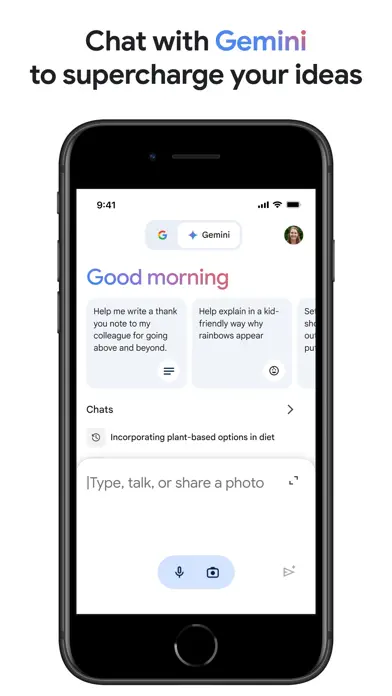
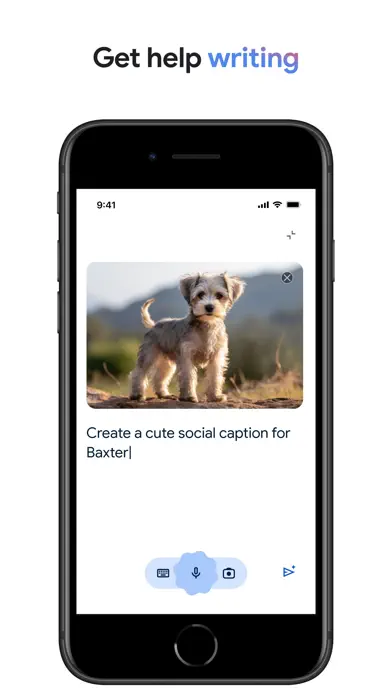
AI Mode is the heart of the app. You can ask a question by talking, typing, or snapping a photo, and you receive an AI-powered response along with follow-up questions and web links. This makes it useful for open-ended research, quick explanations, and exploring a topic in depth. Because the response includes links, you can verify details and read more from the sources the app surfaces.
The follow-up question capability means you can keep the conversation going without starting over. If an answer raises a new question, you can ask it directly and continue building on what you already learned. This is especially helpful for complex subjects where one answer naturally leads to the next.
Searching What You See with Google Lens
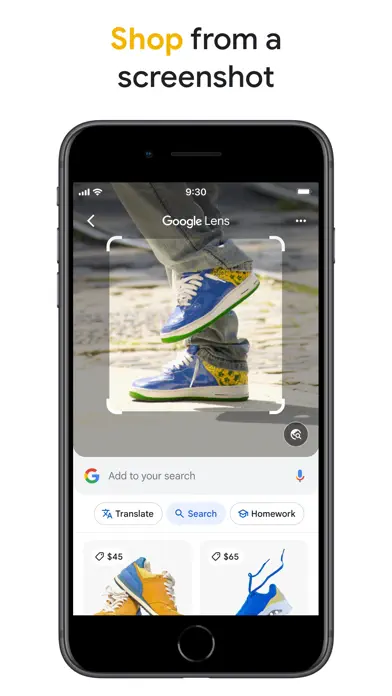
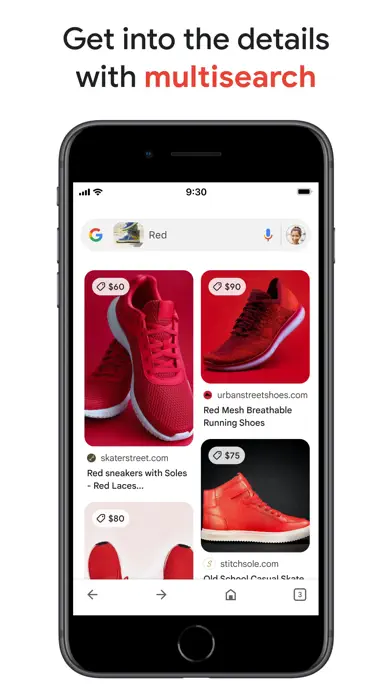
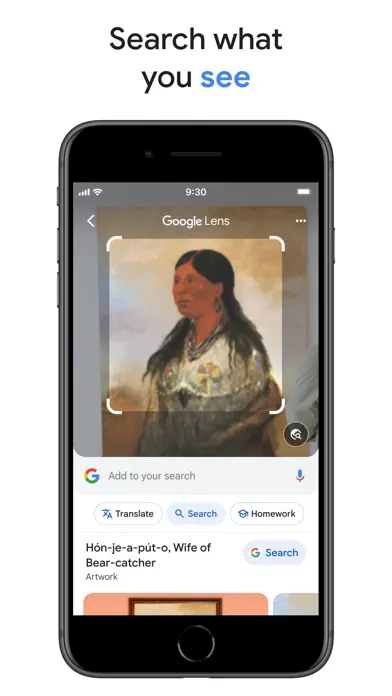
Google Lens turns your camera into a search tool. You can search what you see to identify objects, translate text, find products, and solve math problems. If you spot a plant or animal you don't recognize, Lens can help identify it. If you see text in another language, Lens can translate it. If you come across a product you like, Lens can help you find similar items. And if you're stuck on a math problem, Lens can provide step-by-step guides.
Lens works well alongside AI Mode. You might use Lens to capture something in the world and then continue with AI Mode to ask follow-up questions about what you found. Together they cover both visual and conversational search.
Having a Real-Time Conversation with Search Live
Search Live lets you have a real-time conversation using voice and camera to get answers and on-screen links. Instead of typing a query, you speak naturally and use your camera to show what you're looking at. The app responds with answers and links that appear on screen, so you can keep the conversation flowing.
This feature is useful when your hands are busy or when you want to explore something interactively. You can ask about what you're seeing, get an answer, and immediately follow up. The on-screen links give you a way to dig deeper into whatever comes up during the conversation.
Staying Informed with Discover and Finding Songs
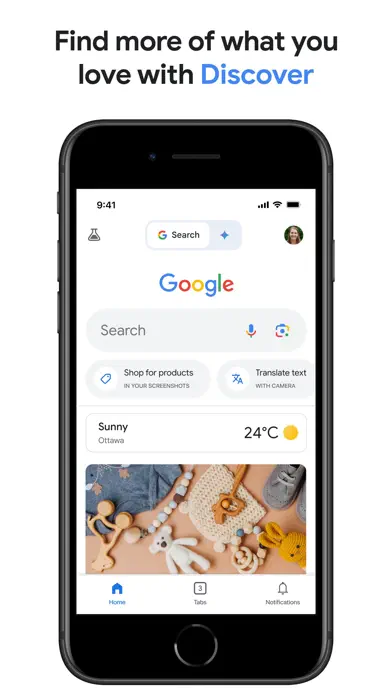
Discover shows personalized news, articles, and videos based on your interests, giving you a way to stay informed without searching for each topic manually. As you use the app, Discover surfaces content that matches what you care about. Hum to Search helps you find a song by humming the tune or searching for music playing nearby, which is handy when you have a melody stuck in your head or hear a track you want to identify.
The Google Search widget gives you quick access to AI Mode, Lens, and more from your home or lock screen. That means you can jump straight into these features without opening the app first. The app also notes that you can search safely with encrypted connections and easy-to-use privacy controls.
Download the Google app
Get the Google app from the App Store on your iPhone or iPad. It is free to download. Once installed, open the app to begin. The app supports both iPhone and iPad, so you can use it on whichever device you prefer.
Ask a question with AI Mode
Use AI Mode to ask a question by talking, typing, or snapping a photo. You'll receive an AI-powered response with follow-up questions and web links. Read through the answer and use the links to explore further. If you have another question, ask a follow-up to keep the conversation going.
AI Mode in the Google app displaying an AI-powered response with follow-up questions and links · Image source: App Store Search what you see with Google Lens
Open Google Lens and point your camera at something you want to search. Use it to identify objects, translate text, find products, or solve math problems with step-by-step guides. This is useful for plants, animals, foreign-language text, products, and equations.
Start a Search Live conversation
Use Search Live to have a real-time conversation using voice and camera. Speak naturally and show what you're looking at to get answers and on-screen links. Follow up as the conversation continues to explore the topic interactively.
Search Live in the Google app showing a real-time voice and camera conversation with on-screen links · Image source: App Store Browse Discover for personalized content
Check Discover to see personalized news, articles, and videos based on your interests. Scroll through the content the app surfaces for you. This keeps you informed without needing to search for each topic manually.
Find a song with Hum to Search
Use Hum to Search to find a song by humming the tune or by searching for music playing nearby. Hum the melody you have in mind, or let the app listen to music around you, and it will help you identify the song.
Hum to Search in the Google app listening to a hummed tune to identify a song · Image source: App Store
Is the Google app free?
Yes. The Google app is free to download on iPhone and iPad.
What devices can I use the Google app on?
The Google app is available on iPhone and iPad, with iPad support included.
What is AI Mode in the Google app?
AI Mode lets you get AI-powered responses by talking, typing, or snapping a photo, with follow-up questions and web links.
What can I do with Google Lens?
Google Lens lets you search what you see to identify objects, translate text, find products, and solve math problems.
How does Hum to Search work?
Hum to Search helps you find a song by humming the tune or searching for music playing nearby.
Image source: App Store